laptop wifi disconnects after sleep mode
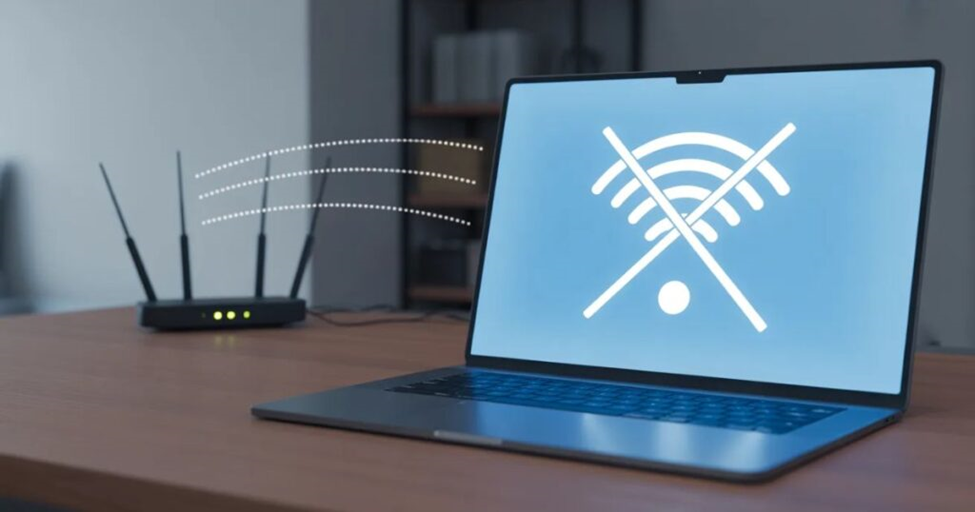
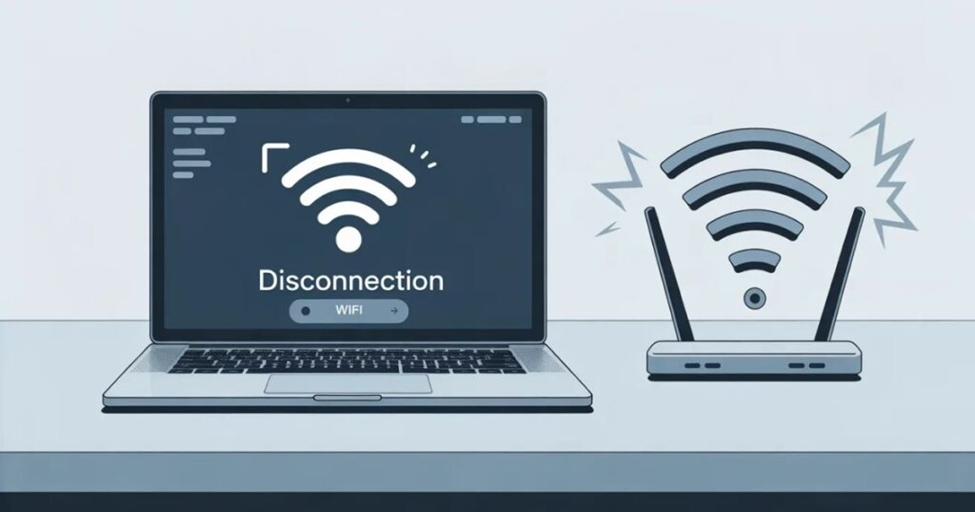
Regaining your internet connection after your computer wakes up shouldn’t feel like a chore. If you face a laptop WiFi disconnect after sleep mode, it is usually because Windows aggressively manages power to extend battery life. By cutting power to the network card during standby, the system often fails to “handshake” with your router upon waking.
This comprehensive guide provides a masterclass in troubleshooting, offering 27 direct, actionable steps to ensure your wireless connectivity remains constant and reliable on Windows 11, 10, and 7.
1. Why Does Laptop WiFi Disconnect After Sleep? (The Science)
To fix a problem, you must understand its origin. Most WiFi issues post-sleep stem from ACPI (Advanced Configuration and Power Interface) states.
- Quick Answer: Your laptop loses WiFi because the system cuts power to the network card to save milliwatts.
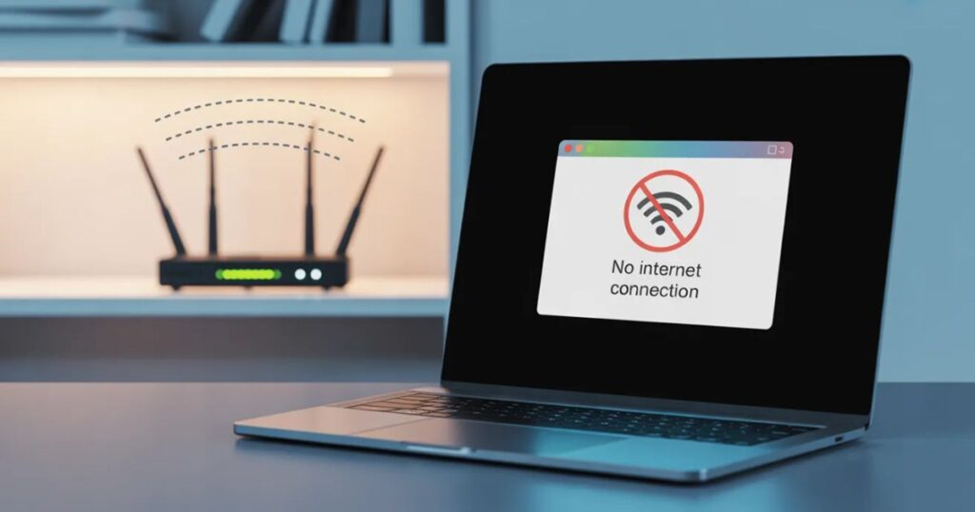
- The Conflict: When the CPU wakes, it expects the network adapter to resume instantly. However, if the driver is slow or the power management settings are too strict, the hardware stays “asleep,” leading to a globe icon or “No Internet” message.
- Modern Standby (S0 Low Power Idle): Newer laptops stay partially awake like a smartphone. If your router doesn’t support the specific background protocols used by Modern Standby, the connection drops.
🔧 CORE TROUBLESHOOTING SECTION
2. Quick Fix Checklist (Try These First)
Before modifying the Windows Registry or updating BIOS, perform these “low-effort, high-reward” actions:
- Toggle Airplane Mode: Turn it on for 10 seconds and turn it off. This forces the wireless stack to reset without a reboot.
- Toggle WiFi Switch: If your laptop has a physical button or an $F$-key for WiFi, use it.
- Check Other Devices: Is your phone still connected? If not, the issue is your Router Compatibility, not the laptop.
- Move Closer to the Router: Sometimes a weak signal causes the “handshake” to fail during the wake cycle.
3. Fix #1 – Disable “Allow the Computer to Turn Off This Device”
This is the Gold Standard fix. It tells Windows to never cut power to the WiFi chip, regardless of battery level.
Step-by-Step for Windows 11 & 10:
- Right-click the Start Button and select Device Manager.
- Expand the Network adapters section.
- Find your Wireless Adapter (usually contains “Intel,” “Realtek,” or “Qualcomm”).
- Right-click it and select Properties.
- Go to the Power Management tab.
- Uncheck the box: “Allow the computer to turn off this device to save power.”
- Click OK and restart.
Pro Tip: If the Power Management tab is missing, it means your laptop uses Modern Standby. Scroll down to the Advanced section to see how to bypass this.
4. Fix #2 – Set Wireless Adapter to Maximum Performance
Windows power plans often throttle the WiFi card to “Medium” or “Low” power saving. On wake, this low voltage might be insufficient to reconnect to a 5GHz band.
- Press Win + R, type control, and hit Enter.
- Go to Hardware and Sound > Power Options.
- Click Change plan settings next to your active plan.
- Click Change advanced power settings.
- Find Wireless Adapter Settings and expand Power Saving Mode.
- Set both On battery and Plugged in to Maximum Performance.
5. Fix #3 – Update or Reinstall WiFi Drivers
A corrupted or outdated driver is a primary reason for a standby WiFi problem.
Reinstalling the Driver:
- Go to Device Manager.
- Right-click your WiFi adapter and select Uninstall device.
- Do NOT check the box “Attempt to remove the driver” yet.
- Restart your laptop. Windows will automatically detect the hardware and reinstall a fresh copy.
Manual Update:
Visit the manufacturer’s support page (e.g., Intel’s Driver Support Assistant or Dell’s SupportAssist) and download the specific driver for your model. OEM drivers are often more stable than those provided by Windows Update.
6. Fix #4 – Disable Fast Startup
Fast Startup is a hybrid of Shutdown and Hibernation. It saves the “state” of your drivers to the disk. If your driver had a glitch before you turned the PC off, that glitch “reloads” every time you start up.
- Open Control Panel > Power Options.
- Click Choose what the power buttons do.
- Click Change settings that are currently unavailable.
- Uncheck “Turn on fast startup (recommended).”
- Click Save changes.
7. Fix #5 – Reset TCP/IP and Network Stack
If your software configuration is “clogged,” a network stack reset clears the path for a fresh connection.
- Open Command Prompt as Administrator.
- Type the following commands, pressing Enter after each:
- netsh winsock reset
- netsh int ip reset
- ipconfig /release
- ipconfig /renew
- ipconfig /flushdns
- Restart your computer.
8. Fix #6 – Run Windows Network Troubleshooter
- Go to Settings > System > Troubleshoot > Other troubleshooters.
- Run the Network and Internet troubleshooter.
It specifically looks for “Gateway not available” errors, which are common after waking from sleep.
9. Fix #7 – Change MIMO Power Save Mode
MIMO (Multiple Input Multiple Output) allows your WiFi to use multiple antennas. Some “green” settings disable these antennas during sleep, which confuses the router upon wake.
- Go to Device Manager > Network Adapters > [Your WiFi Card] > Properties.
- Go to the Advanced tab.
- Look for MIMO Power Save Mode or SMPS Mode.
- Change it to No SMPS or Disabled.
10. Fix #8 – Set WLAN AutoConfig to Automatic
The WLAN AutoConfig service manages how Windows joins wireless networks. If this service is delayed, your WiFi won’t reconnect until you manually trigger it.
- Press Win + R, type services.msc, and hit Enter.
- Find WLAN AutoConfig.
- Double-click it. Ensure Startup type is set to Automatic.
- If the service is stopped, click Start.
11. Fix #9 – Disable VPN and Third-Party Antivirus
VPNs often have a “Kill Switch.” If the VPN loses its tunnel during sleep, it may block all internet traffic to your adapter upon wake-up to prevent data leaks. Test by disabling your VPN to see if the WiFi still drops.
12. Fix #10 – Modify Registry for Modern Standby
If the “Power Management” tab is missing in Device Manager, your PC likely uses Modern Standby. You can bypass this via the Registry.
- Press Win + R, type regedit, and hit Enter.
- Navigate to: HKEY_LOCAL_MACHINE\SYSTEM\CurrentControlSet\Control\Power
- Right-click on the right pane, select New > DWORD (32-bit) Value.
- Name it PlatformAoAcOverride and set the value to 0.
- Restart your computer.
13. Fix #11 – Update BIOS/UEFI Firmware
Your motherboard’s BIOS controls how hardware wakes from sleep. Visit your manufacturer’s website (Dell, HP, ASUS) and download the latest BIOS update to fix power management bugs.
14. Fix #12 – Disable IPv6 (Legacy Systems)
On Windows 7 or older routers, the system may struggle to re-assign an IPv6 address after wake-up.
- Go to Network and Sharing Center > Change adapter settings.
- Right-click your WiFi > Properties.
- Uncheck “Internet Protocol Version 6 (TCP/IPv6).”
15. Fix #13 – Reset Your Router
Your router might think your laptop is still “active” and refuse to hand out a fresh IP address. Unplug your router for 60 seconds and plug it back in.
16. Fix #14 – Use a Static IP Address
Manually assigning an IP address prevents the “Obtaining IP Address” delay.
- In WiFi Properties, double-click IPv4.
- Input an IP within your router’s range (e.g., 192.168.1.50).
17. Fix #15 – Turn Off “Connect to Suggested Hotspots”
Windows might disconnect from your home network to scan for others. Turn this off in Settings > Network & Internet > WiFi.
18. Fix #16 – Adjust “Lid Close” Action
Ensure your laptop is entering Sleep, not Hibernate, when the lid closes. Hibernation shuts down the network card completely.
19. Fix #17 – Scan for Malware
Malware can hijack your network stack. Run a full scan with Windows Defender or Malwarebytes.
20. Fix #18 – Group Policy: Network Connectivity During Standby
- Open gpedit.msc.
- Go to Computer Configuration > Administrative Templates > System > Power Management > Sleep Settings.
- Enable “Allow network connectivity during connected-standby.”
21. Fix #19 – Change WiFi Channel Width
High interference on 2.4GHz can cause drops. Change your router’s channel to a static number (like 1, 6, or 11) instead of “Auto.”
22. Fix #20 – Use an External USB WiFi Adapter
If your internal card is failing, a USB WiFi dongle is the fastest fix. It uses its own drivers and power settings.
23. Fix #21 – Uninstall Brand-Specific “Network Boosters”
Software like Lenovo Vantage or HP Connection Optimizer can conflict with Windows settings. Uninstall them to see if stability improves.
24. Fix #22 – Check Hardware (Antenna Pins)
If your laptop wifi disconnects after sleep mode, the tiny gold IPEX connectors on the WiFi card might have popped off. Ensure they are snapped firmly onto the card.
25. Fix #23 – Roll Back Driver
If the issue started after a Windows Update, go to Device Manager > WiFi Properties > Driver and click Roll Back Driver.
26. Fix #24 – Disable “802.11d” Support
Some adapters get “stuck” trying to determine country codes after sleep. Disable 802.11d in the adapter’s Advanced Properties.
27. Fix #25 – Perform a Windows Cloud Reset
If all else fails, your system files may be corrupted. Go to Settings > System > Recovery > Reset this PC and choose Cloud download.
📊 COMPARISON: SLEEP VS. HIBERNATE VS. HYBRID
| State | WiFi Status | Recovery Speed | Common Issue |
| Sleep | Low power | Instant | Driver wake-up failure |
| Hibernate | Power OFF | Moderate | IP address conflicts |
| Modern Standby | Low power / Connected | Instant | Battery drain / Router drops |
1. Wi-Fi Disconnecting During Sleep or Screen Off
- Does sleep mode turn off Wi-Fi?
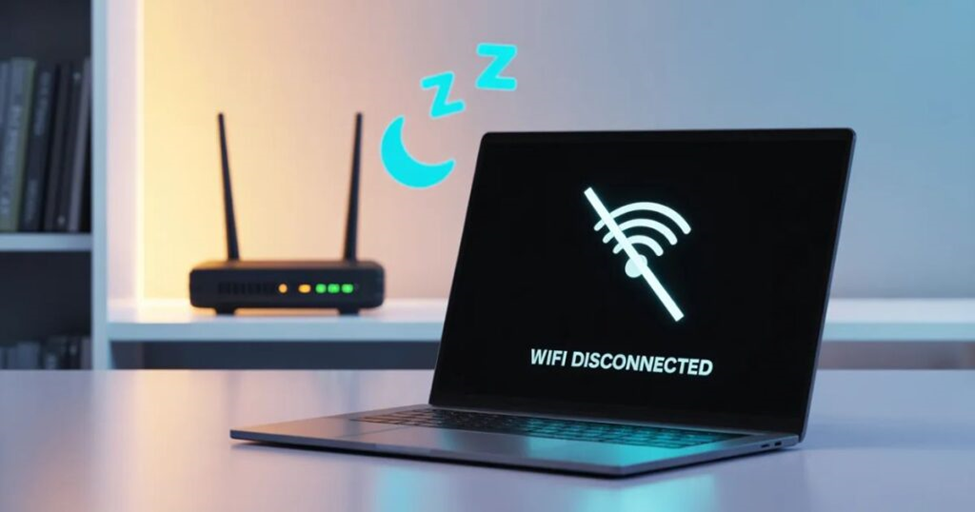
Yes. Most laptops put the Wi-Fi adapter into low-power mode during sleep, causing temporary disconnection. - Why does my laptop keep disconnecting from Wi-Fi when I turn it on?
This can happen due to outdated drivers, power-saving settings, or temporary router issues. - Why does my Wi-Fi keep disconnecting when I turn off my screen?
Power-saving features in Windows or the Wi-Fi adapter may disable the connection when idle. - How to keep Wi-Fi on while in sleep mode?
Adjust power settings: Set Wireless Adapter to Maximum Performance and enable “Keep Wi-Fi on during sleep” in Windows power options. - How to stop laptop from shutting down Wi-Fi when sleeping?
In Device Manager → Wi-Fi adapter → Properties → Power Management, uncheck “Allow the computer to turn off this device to save power.” - Why does my Windows 11 laptop keep disconnecting from Wi-Fi?
Likely causes: outdated drivers, aggressive power management, or conflicting network apps. Updating drivers and adjusting sleep/Wi-Fi settings usually fixes this.
2. Wi-Fi Disconnecting After Inactivity or Overnight
- Why does my Wi-Fi cut out in the middle of the night?
Your laptop may sleep, or the router may drop idle devices. Ensure your router has “always-on” mode enabled. - Why does my internet disconnect after inactivity?
Power-saving or router idle timeout settings can disconnect devices to save energy. - How to fix Wi-Fi automatically disconnecting?
Update Wi-Fi drivers, adjust power settings, reset network settings, and check for background apps interfering with the connection. - What to do if a laptop won’t stay connected to Wi-Fi?
Forget the network and reconnect, check Wi-Fi password, update drivers, and disable conflicting VPNs or firewall apps. - Can a virus cause Wi-Fi disconnection?
Rarely, yes. Malware can interfere with network services. Run a full antivirus scan to rule it out. - How to stop laptop from losing Wi-Fi after inactivity?
Adjust both Windows power plan and Wi-Fi adapter settings to prevent power-saving disconnections, and enable “Keep Wi-Fi on during sleep.”
Final Summary Checklist
- Uncheck “Allow computer to turn off device” (Fix #1).
- Set Power Plan to “Maximum Performance” (Fix #2).
- Disable Fast Startup (Fix #4).
- Update BIOS (Fix #11).
About the Author


Usman is the founder of TechnoWay and writes about AI tools, student productivity, and emerging technology trends. He focuses on practical, real-world use of AI for education, research, and everyday problem-solving.
His content is based on hands-on testing, simplified explanations, and responsible AI usage to help students and learners make better technology decisions.