"laptop freezes when opening multiple browser tabs"
AI Overview: If your laptop freezes when opening multiple browser tabs, the primary causes are usually insufficient RAM, high CPU usage, or hardware acceleration conflicts. To stop freezing instantly, use Task Manager (Ctrl+Shift+Esc) to end resource-heavy processes, disable bloated browser extensions, and clear your cache. In 2026, upgrading to 16GB RAM or an NVMe SSD is the ultimate permanent solution.

1️⃣ Why Does My Laptop Freeze When I Open Multiple Browser Tabs?
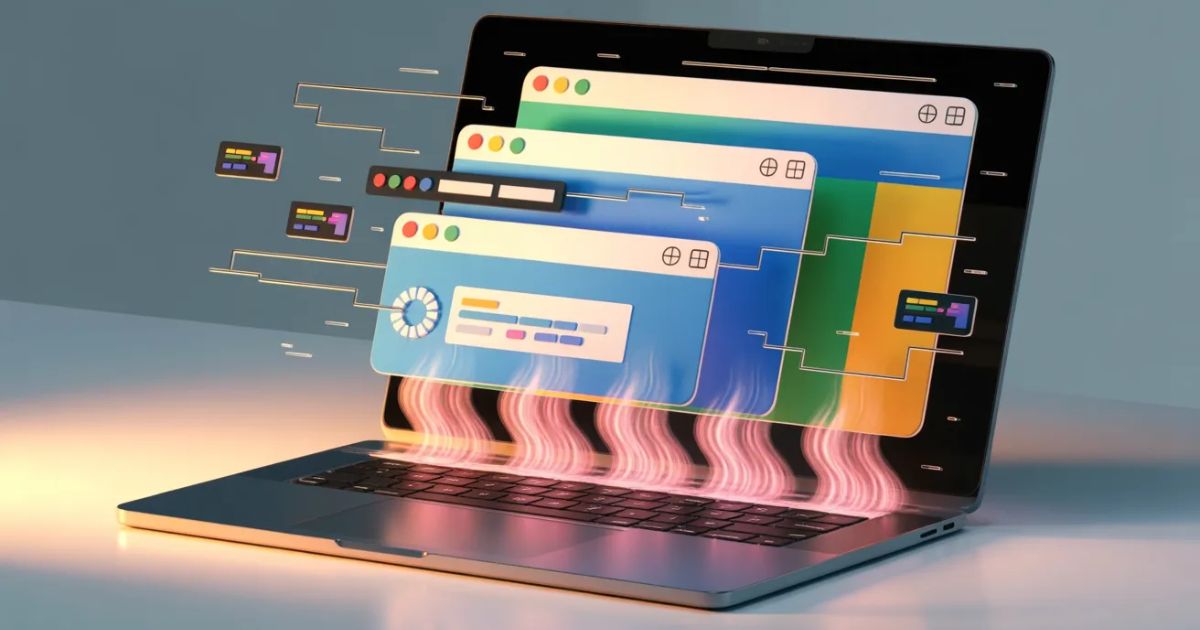
When you notice your laptop freezes when opening multiple browser tabs, it’s usually because your hardware has hit a resource bottleneck. Each new tab you open acts like an individual program that demands its own slice of Random Access Memory and processing power. If you’re using a modern browser like Chrome or Edge in 2026, the V8 JavaScript engine can easily overwhelm older systems.
Your computer tries to juggle these requests, but eventually, the operating system becomes overloaded and stops responding. This system hang often happens when a website runs intensive scripts or high-resolution video ads in the background. Understanding how to manage these web browser processes is the first step to reclaiming your laptop productivity.
2️⃣ Common Symptoms of Laptop Freezing Issues
A total system becomes unresponsive event is the most frustrating sign that your machine is struggling. You might find yourself staring at a frozen screen where nothing—not even the clock—is moving. Often, this starts with your mouse lagging or jumping across the display as the CPU load spikes to 100%.
If you experience frequent browser crashing, your software is likely failing to allocate enough virtual memory to stay stable. Sometimes, the conflict is so severe that it triggers a blue screen or forced shutdown to protect the hardware. Recognizing these performance warning signs early allows you to fix the laptop freeze when opening multiple browser tabs before you lose any unsaved work.
3️⃣ Main Reasons Your Laptop Freezes with Multiple Tabs
Heavy multitasking requires a delicate balance between your software settings and your physical hardware specs. If you have an outdated browser version, it may lack the latest memory saver mode features designed for efficiency. Additionally, hidden malware or background processes could be stealing the energy your laptop needs to run smoothly.
| Potential Cause | Description | Impact Level |
| Lack of RAM | Not enough short-term storage for open tabs | Critical |
| CPU Throttling | Processor slows down due to heat or high load | High |
| Disk Latency | Slow HDD can’t swap data fast enough | Medium |
4️⃣ Insufficient RAM – The #1 Cause of Browser Freezing
Your system memory is the workspace where your laptop stores all the data for your active tabs. When you run out of RAM capacity, Windows starts moving data to your much slower hard drive. This process, known as “swapping,” is why your laptop freezes when opening multiple browser tabs during heavy use.
In 2026, web content is richer and more demanding than ever before. If your device only has 4GB or 8GB of RAM, you will likely face frequent stutters when opening more than five tabs. Upgrading your physical memory is the single most effective way to eliminate a laptop freeze when opening multiple browser tabs for good.
5️⃣ Too Many Chrome or Edge Extensions Running in Background
While a browser extension can add great functionality, each one consumes its own portion of system resources. Some extensions are poorly coded and cause memory leaks that grow larger the longer your browser is open. If your laptop freezes when opening multiple browser tabs, these “helper” apps might actually be the villains.
You should regularly audit your installed plugins and remove any that you don’t use daily. Many people find that disabling just two or three resource-heavy extensions instantly restores their browsing speed. This simple optimization tip keeps your browser lean and helps prevent a laptop freeze when opening multiple browser tabs.
6️⃣ High CPU Usage from Browser Processes
Modern websites often run complex scripts and animations that force your processor to work overtime. When you have ten tabs doing this simultaneously, you’ll see high CPU usage in your system monitor. If the “brain” of your computer is too busy, your laptop freezes when opening multiple browser tabs.
“A single auto-playing 4K video ad can consume more CPU cycles than twenty text-based articles combined.” — Tech Hardware Review 2026
Using a script blocker or a browser with built-in ad-blocking can significantly lower this load. Reducing the computational demand on your hardware is a smart way to stop a laptop freeze when opening multiple browser tabs. It also keeps your laptop cooler and extends your battery life during long sessions.
7️⃣ Outdated Browser Version Causing Performance Issues
Software developers constantly release stability updates to fix bugs that cause system freezes. If you ignore these prompts, you’re running code that might not be compatible with newer web standards. An outdated browser is far more likely to cause a laptop freeze when opening multiple browser tabs than a current one.
Updates often include efficiency improvements that specifically target how memory is managed across multiple windows. Checking for the latest browser build is a quick and free way to troubleshoot your issues. It ensures that your browsing experience stays fast, secure, and free from a laptop freeze when opening multiple browser tabs.
8️⃣ Hard Drive (HDD) vs SSD – Does Storage Type Matter?
If your laptop still uses a mechanical Hard Disk Drive, your data access speeds are severely limited. An HDD has to physically spin to find information, which causes massive system lag during multitasking. This is a primary reason why an older laptop freezes when opening multiple browser tabs today.
Switching to a Solid State Drive or an NVMe SSD provides an almost instantaneous performance boost. An SSD handles the virtual memory paging file much faster than any traditional hard drive ever could. Investing in SSD storage is the best “bang-for-your-buck” fix for a laptop freeze when opening multiple browser tabs.
9️⃣ Malware or Hidden Background Processes
Sometimes, your laptop is slow because malicious software is using your resources in secret. These hidden processes can be mining cryptocurrency or sending data, leaving nothing for your browser. If your laptop freezes when opening multiple browser tabs, a virus might be the true culprit.
You should perform a deep system scan with a reputable antivirus program to find these threats. Additionally, check your startup apps to see if unnecessary programs are launching when you turn on your computer. Cleaning up these background tasks helps prevent a laptop freeze when opening multiple browser tabs.
🔟 Hardware Acceleration Problems in Browsers
This feature attempts to offload graphical tasks to your laptop’s GPU to speed things up. However, if your graphics driver is out of date or incompatible, it can cause a system lockup. Many users find their laptop freezes when opening multiple browser tabs specifically when this setting is enabled.
Toggling this setting off can act as an instant fix for many unexplained freezes. It forces the CPU to handle the rendering, which is often more stable on budget laptops. This is a classic troubleshooting step to stop a laptop freeze when opening multiple browser tabs.
1️⃣1️⃣ How to Check RAM and CPU Usage in Windows
To see exactly what is happening, you need to open the Windows Task Manager. Press Ctrl + Shift + Esc and click on the Performance tab to view your live stats. If you see 100% Disk Usage or Memory at 95%, your laptop freezes when opening multiple browser tabs because it’s maxed out.
| Component | Healthy Usage | Critical Level |
| CPU | 5% – 50% | 90% + |
| RAM | 40% – 70% | 95% + |
| Disk | 0% – 10% | 100% Constant |
1️⃣2️⃣ Quick Fix #1 – Close Background Applications
You might have apps like Spotify, Steam, or Discord running in your system tray without knowing. These apps consume precious RAM that your browser needs to function without stuttering. If your laptop freezes when opening multiple browser tabs, closing these extra apps is a great first move.
Right-click the icons in your taskbar tray and select “Quit” or “Exit” for anything you aren’t using. This simple memory management trick can free up enough space to keep your browser running smoothly. It’s the easiest way to prevent a laptop freeze when opening multiple browser tabs right now.
1️⃣3️⃣ Quick Fix #2 – Disable Unnecessary Browser Extensions
Navigate to your extensions page by typing chrome://extensions or edge://extensions in your address bar. Turn off any add-ons that you haven’t clicked on in the last week. If your laptop freezes when opening multiple browser tabs, a “bloated” extension is often the secret reason.
Removing these third-party scripts reduces the amount of work your laptop has to do for every page load. This results in a much snappier interface and fewer random crashes. It’s a highly effective way to stop a laptop freeze when opening multiple browser tabs without changing your habits.
1️⃣4️⃣ Quick Fix #3 – Clear Cache and Browser Data
Over months of use, your browser accumulates thousands of temporary files and cookies. If these files become corrupted, they can cause a system hang every time you try to load a site. If your laptop freezes when opening multiple browser tabs, a “factory reset” of your data might be necessary.
Go to Settings > Privacy > Clear Browsing Data and select “All Time” for your cache and cookies. This forces the browser to re-download clean data, which often fixes persistent performance bugs. It’s a standard piece of maintenance to avoid a laptop freeze when opening multiple browser tabs.

1️⃣5️⃣ Quick Fix #4 – Update Your Browser and Windows
Microsoft and Google release security patches that also optimize how your hardware handles heavy loads. If you are behind on your Windows Updates, your system might be missing a vital fix for memory management. Updating everything can resolve a laptop freeze when opening multiple browser tabs automatically.
[Image showing the Windows Update ‘Check for Updates’ button]
Ensure you restart your laptop after the updates are installed to finalize the changes. Keeping your firmware and drivers current ensures the best possible communication between your software and hardware. This proactive approach stops a laptop freeze when opening multiple browser tabs before it starts.
1️⃣6️⃣ Quick Fix #5 – Turn Off Hardware Acceleration
If your laptop screen flickers or freezes during video playback, your GPU might be struggling. You can disable hardware acceleration in your browser’s “System” settings to see if it improves stability. This is a common solution for a laptop freeze when opening multiple browser tabs on machines with integrated graphics.
Once you toggle it off, make sure to relaunch your browser for the change to take effect. Many users find that this single tweak stops their system from locking up during heavy multitasking. It’s a reliable fix for a laptop freeze when opening multiple browser tabs.
1️⃣7️⃣ Advanced Fix – Increase Virtual Memory (Pagefile Settings)
Virtual memory is an “emergency” space on your drive that Windows uses when your physical RAM is full. You can manually increase the pagefile size to give your laptop a bigger safety net. This advanced performance tweak can prevent a laptop freeze when opening multiple browser tabs during peak usage.
Go to Advanced System Settings > Performance > Advanced and change the virtual memory allocation. Setting it to 1.5 times your total RAM can provide a stability boost for multitasking. This is a powerful way to mitigate a laptop freeze when opening multiple browser tabs.
1️⃣8️⃣ Should You Upgrade Your RAM? (4GB vs 8GB vs 16GB Guide)
In 2026, 16GB of RAM is considered the standard for anyone who does more than basic emailing. If you only have 4GB or 8GB, your laptop freezes when opening multiple browser tabs because the hardware is simply outdated. Adding a new RAM stick is usually very affordable and easy to do yourself.
| RAM Amount | Best For… | Performance Level |
| 4GB | Single tab, basic email | Poor (Freezes likely) |
| 8GB | 3-5 tabs, office work | Fair (Occasional lag) |
| 16GB | 20+ tabs, multitasking | Excellent (Smooth) |
1️⃣9️⃣ When to Replace HDD with SSD for Better Performance
If your laptop takes more than 30 seconds to turn on, you likely have a slow Hard Drive. Replacing it with an SATA or NVMe SSD will make your browser feel five times faster. This is the ultimate cure for a laptop freeze when opening multiple browser tabs on an older machine.
An SSD allows your laptop to read and write temporary web data almost instantly. This removes the “waiting time” that causes your interface to freeze up. Most people find that this hardware upgrade is much cheaper than buying a whole new laptop. It effectively ends a laptop freeze when opening multiple browser tabs.
2️⃣0️⃣ Best Browsers for Low-RAM Laptops
Not all browsers use the same amount of system energy to display a website. Microsoft Edge is often the most efficient choice for Windows users because it’s built into the system. If your laptop freezes when opening multiple browser tabs, trying a more “lightweight” browser like Brave or Opera GX could help.
These browsers often include a memory limiter that prevents the app from taking over your whole computer. Choosing a resource-efficient browser is a smart strategy for anyone on a budget device. It’s an easy software change to prevent a laptop freeze when opening multiple browser tabs.
2️⃣1️⃣ How Many Browser Tabs Is Too Many?
The “perfect number” of tabs depends entirely on your laptop’s internal specs. If you have a high-end workstation, you might handle fifty tabs; if you have a budget netbook, five might be your limit. If your laptop freezes when opening multiple browser tabs, you’ve clearly pushed it too far.
Try using tab groups or “Reading Lists” to save pages for later instead of leaving them open. This reduces the active memory load on your processor and keeps your workspace clean. Knowing your hardware limits prevents a laptop freeze when opening multiple browser tabs from ruining your day.

Frequently Asked Questions (FAQs)
1. Why does my laptop overheat with a lot of tabs open?
When you open many browser tabs, each tab uses CPU and RAM. If system resources go above 80–100% usage:
- The processor works harder
- Cooling fans run faster
- Heat increases
Solution:
Close unused tabs, disable heavy extensions, clean laptop vents, and consider upgrading RAM if overheating happens frequently.
2. Why does my laptop freeze when I open Google Chrome?
Google Chrome runs each tab as a separate process. If:
- Your RAM is low (4GB or less)
- Too many extensions are installed
- Background apps are running
Your system may freeze or become unresponsive.
Fix:
Disable extensions, update Chrome, and check Task Manager for high memory usage.
3. Can having too many tabs open crash your computer?
Yes. If your RAM and virtual memory become fully used:
- The browser may crash
- The system may freeze
- You may see a blue screen error
Too many active tabs overload system resources.
4. Can faulty RAM cause freezing?
Yes. Faulty or failing RAM can cause:
- Random freezing
- Sudden restarts
- Application crashes
- Blue screen errors
5. How can I tell if RAM is causing crashes?
Common signs of RAM issues include:
- Frequent system freezes
- Crashes under heavy load
- Memory-related error messages
- Blue screen with memory error codes
Test it:
Run the Windows Memory Diagnostic tool to check for RAM problems.
6. How do I solve the multiple tab problem?
Effective solutions:
- Close unused tabs
- Use tab management extensions
- Upgrade to at least 8GB RAM
- Switch from HDD to SSD
- Clear browser cache regularly
7. What are the signs of a failing PC?
Warning signs include:
- Slow performance
- Frequent freezing
- Overheating
- Strange hard drive noises
- Random shutdowns
If these happen often, hardware inspection may be needed.
8. What is the maximum number of tabs that can be opened?
There is no fixed limit. It depends on:
- RAM size
- CPU performance
- Browser type
- Website complexity
An 8GB RAM laptop can usually handle 20–40 light tabs smoothly.
9. What happens if you open 100 tabs?
Opening 100 tabs can:
- Max out your RAM
- Slow down your laptop
- Increase fan noise
- Cause browser crashes
Heavy websites (like YouTube or Google Docs) consume more memory.
10. How do I get rid of 99 open tabs?
Quick methods:
- Right-click a tab → Close other tabs
- Use “Close all tabs” option
- Use Ctrl + Shift + W
- Save session before closing
11. What is the maximum number of tabs you can have open?
Technically, browsers allow hundreds of tabs. However, performance depends entirely on available system memory and processing power.
12. How many tabs can my PC handle?
General guideline:
| RAM Size | Recommended Active Tabs |
| 4GB | 5–10 tabs |
| 8GB | 15–30 tabs |
| 16GB | 40+ tabs |
Heavy websites reduce this limit.
13. How many tabs should I have open at once?
For smooth performance:
- Keep 10–20 tabs open on 8GB RAM
- Close inactive tabs
- Bookmark pages you don’t actively need
14. Is it better to close or keep tabs open?
It is better to close unused tabs.
Open tabs continue using memory and CPU in the background, even if inactive.
15. How do I clear Chrome’s cache?
Steps:
- Open Chrome
- Click the three dots (top right)
- Go to Settings
- Click Privacy and Security
- Select Clear browsing data
- Choose “Cached images and files”
- Click Clear data
Clearing cache can improve performance and fix minor freezing issues.
16. Does having too many tabs open slow down a computer?
Yes. Every tab consumes:
- RAM
- CPU resources
- Background processing power
More tabs = higher memory usage = slower performance and higher risk of freezing.
Final Tip
If your laptop frequently freezes when multiple tabs are open:
- Upgrade to at least 8GB RAM
- Install an SSD
- Disable unnecessary extensions
- Monitor CPU and memory usage regularly
These steps significantly improve multitasking performance and reduce freezing issues.
About the Author


Usman is the founder of TechnoWay and writes about AI tools, student productivity, and emerging technology trends. He focuses on practical, real-world use of AI for education, research, and everyday problem-solving.
His content is based on hands-on testing, simplified explanations, and responsible AI usage to help students and learners make better technology decisions.