Android phone slow after update fix
Updating your Android phone usually brings new features, improved security, and better overall performance. However, many users notice the opposite effect after installing the latest updates—their devices start to lag, apps freeze, and general responsiveness slows down. If you’ve ever searched for an Android phone slow after update fix you’re not alone. This is a common issue caused by several factors ranging from temporary system glitches to resource-intensive updates.
One of the main reasons your phone feels sluggish after an update is that system files are being rebuilt and optimized in the background. Updates often include new features that demand more processing power, RAM, or storage, which can overwhelm older devices. Apps may also need time to adapt to the new software version, leading to temporary lag and slower navigation. Understanding these causes is the first step toward restoring your phone’s speed.
Another contributing factor is storage and app management. Accumulated cache, leftover data from old apps, or apps running in the background can significantly slow down your Android device. Users often overlook these simple yet impactful issues, but they play a major role in post-update performance drops. Implementing practical solutions, such as clearing cache or removing unused apps, can dramatically improve responsiveness.
Finally, some performance problems may stem from software incompatibility, malware, or outdated apps. Even a well-maintained phone can encounter lag if the installed apps are not fully optimized for the latest Android version. In this guide, we will explore proven methods and professional tips to address these issues, helping you fix a slow Android phone after an update and restore optimal performance. By the end, your device should feel smoother, faster, and more reliable.
Introduction: Why Your Android Phone Feels Slow After an Update
Fresh software often triggers a “digital hangover” where your processor works overtime to re-index thousands of personal files and photos. This invisible labor causes Phone lag after update because the system is rebuilding deep architectural caches to keep you secure. You might notice your Android phone keeps freezing or crashing while these background tasks finish their necessary work during the first forty-eight hours.
Understanding the android phone slow after update fix starts with giving your device a little bit of patience and grace. Most Android performance issues vanish once the system completes its initial setup phase and optimizes the new code for your hardware. If the sluggishness persists after a few days, it is time to dig deeper into your settings to find the culprit.
Understanding the Impact of Updates on Performance
New operating systems often introduce heavy visual effects that can overwhelm an aging processor or a tired, worn-out battery. This leads to an Android update slow phone experience where the hardware simply cannot keep up with the demanding modern software. You must realize that steps to optimize Android phone performance involve balancing these new features with your device’s actual physical capabilities.
Manufacturers try to push the limits of technology, but sometimes the Android system optimization isn’t perfect for every single model. If you are looking for the best ways to boost Android speed after update, you must look at how the software interacts with your RAM. Older chips struggle with high-resolution animations, so learning how to make android phone faster becomes a vital skill for every user.
Step 1: Check Your Storage Space
Your phone needs a “scratchpad” of empty space to move files around and perform basic daily housekeeping chores. If you have Low storage Android issues, the system slows down because it cannot find enough room to breathe or think. Follow these Tips for freeing up storage on Android by moving your heavy 4K videos and high-quality photos to a secure cloud service.
| Storage Level | Performance Impact | Recommended Action |
| 20% Free | Optimal Speed | No Action Needed |
| 10% Free | Minor Stuttering | Delete Downloaded Files |
| 5% Free | Constant Lag | Tips for freeing up storage on Android |
| 1% Free | System Crashing | Move Everything to Cloud |
Step 2: Delete Unused Apps
Every app you keep but never open acts like an anchor dragging down your overall system speed and responsiveness. Unused apps removal is a critical step because these programs often start themselves secretly and eat your precious resources. You can how to speed up a lagging Android phone simply by purging the digital clutter that fills your app drawer.
Step 3: Clear App Cache and Data
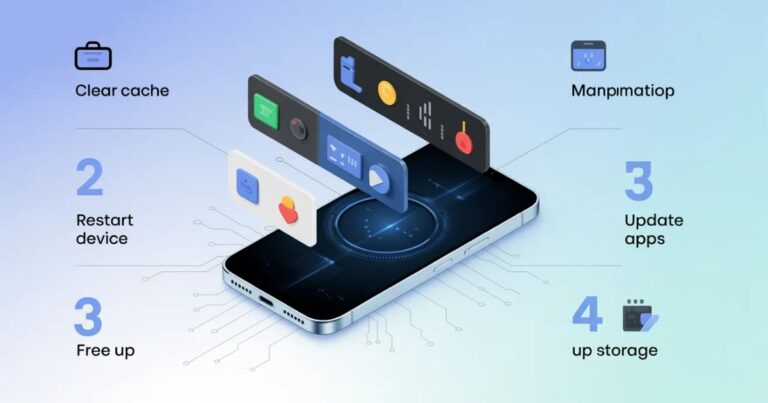
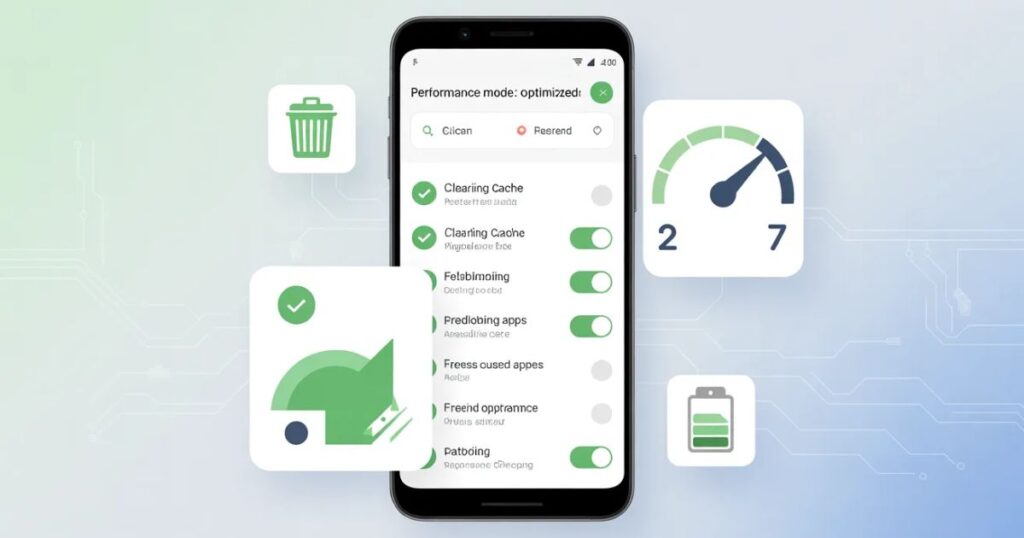
Apps like TikTok or Chrome build up massive mountains of temporary data that can become corrupted after a system jump. Learning How to clear cache on Android apps allows you to wipe away this “digital gunk” without losing your important login info. This Clear cache Android technique is a legendary android phone slow after update fix that provides immediate results for most users.
Step 4: Limit Background Apps
Too many invisible processes running behind the scenes will choke your processor and lead to a very hot, slow device. You should Prevent apps from running in the background to ensure your current task gets one hundred percent of the phone’s power. Effective Android RAM optimization keeps your device snappy because it prevents your memory from becoming a crowded, chaotic mess.
Step 5: Restart Your Phone
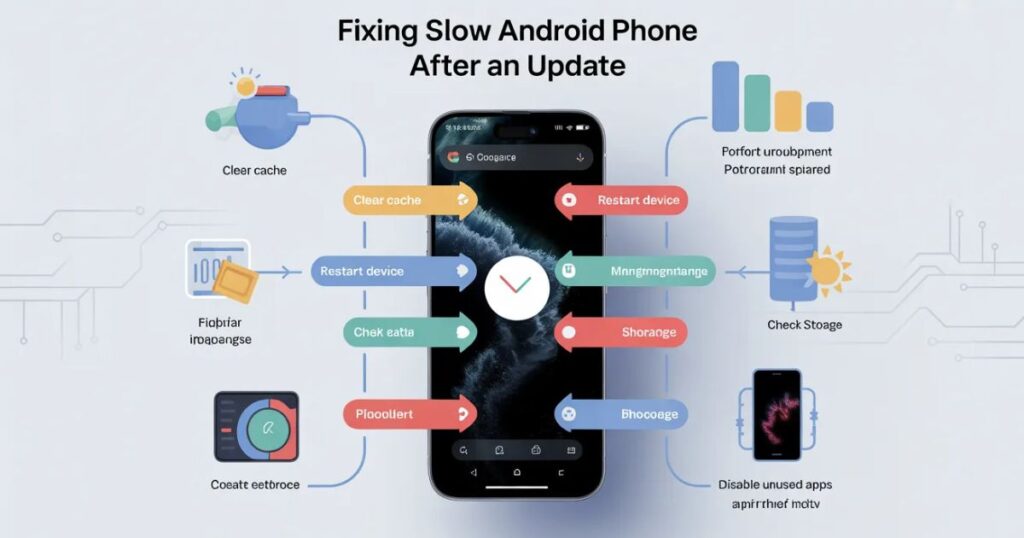
It sounds too simple, but a fresh reboot is often the most effective android phone slow after update fix available. Restarting flushes the RAM and kills any runaway processes that are causing your Android performance issues to worsen over time. A weekly restart is one of the best Steps to optimize Android phone performance for maintaining a healthy and happy smartphone.
Step 6: Check for App Updates
After you update your system, your individual apps need their own patches to work correctly with the new software. You must Update apps Android through the Play Store to fix bugs that cause an App crash after update or lag. Developers often release these “compatibility fixes” specifically to solve Phone lag after update problems that users report in the UK and USA.
Step 7: Update Your Android OS
Sometimes the fix for a bad update is actually just a smaller “hotfix” patch released by the phone manufacturer. You should regularly How to check for Android system updates to ensure you have the latest stability improvements and security fixes. This is a key part of Android system optimization that keeps your hardware running at its peak potential for years.
Step 8: Scan for Malware and Harmful Apps
Hidden viruses or malicious “miner” apps can hijack your CPU, leading to Android performance issues and extreme battery drain. If your Android phone keeps freezing or crashing, a security scan might reveal an intruder that is eating your speed. Keeping your device clean from digital pests is a vital part of the android phone slow after update fix.
Step 9: Remove Bloatware and Suspicious Apps
Many phones come with pre-installed “bloatware” that you never asked for and probably never use in your daily life. You should Remove bloatware Android by disabling these apps in your settings to free up valuable system resources and RAM. This is a great way to boost Android speed without having to perform a full and scary system wipe.
Step 10: Monitor and Optimize Battery Usage
As a battery gets older, it might struggle to provide the high voltage needed for the fastest processing speeds. You should Manage battery usage on Android to see which power-hungry apps are causing Android performance issues throughout your day. Effective Android battery management ensures that your phone stays cool and responsive even when the power level starts to drop.
Step 11: Reduce Animations and Visual Effects
You can make your phone feel twice as fast by cutting out the fancy “eye-candy” transitions that slow down the UI. When you Optimize animations and transitions for faster phone speeds, you remove the artificial delays between your taps and the screen’s response. This is a favorite android phone slow after update fix among tech enthusiasts who want an instant speed boost.
Step 12: Manage Widgets and Live Wallpapers
Live wallpapers and constant weather widgets are massive resource hogs that contribute to Phone lag after update on older devices. Removing these items is one of the easiest Steps to optimize Android phone performance for people who want a clean, fast home screen. Minimizing your desktop clutter is a permanent android lag solution that helps your battery last much longer every day.
Step 13: Address Overheating Issues
Heat is the natural enemy of electronics; when your phone gets too hot, the system “throttles” itself to cool down. You must Solve overheating issues on Android by taking off heavy cases or avoiding direct sunlight during long gaming sessions. These Android overheating solutions prevent the thermal lag that makes your Android update slow phone feel so frustratingly unresponsive.
Step 14: Check Internet Speed and Connectivity
Sometimes what looks like a slow phone is actually just a very poor Wi-Fi or 5G connection in your area. If you experience Slow internet Android speeds, your apps might “hang” while they wait for data to load from the web. Testing your connection is a vital part of any android phone slow after update fix to rule out network problems.
Step 15: Use Lite Versions of Apps for Better Performance
If you have a budget device, you should Use lite versions of apps to save resources like RAM and storage space. These “Lite” apps offer the same core features but are specifically designed to solve Android performance issues on weaker hardware. This is a smart Boost Android speed strategy for users who want to stay connected without slowing down their phone.
Step 16: Back Up Data Before a Factory Reset
If you decide to wipe your phone, you must protect your photos and contacts by saving them to a cloud service first. A Factory reset for slow Android devices is a powerful tool, but it will erase every single file you own. Taking this step ensures that your android phone slow after update fix doesn’t result in the loss of your precious memories.
Step 17: Perform a Factory Reset if Needed
When all other cleaning methods fail, a Factory reset Android provides the ultimate fresh start for your struggling mobile device. This process removes every piece of corrupted data and gives the new update a clean, empty house to live in comfortably. It is the most extreme android phone slow after update fix, but it is also the most effective one.
Step 18: Consider Device Age and Hardware Limitations
There comes a time when the physical silicon inside your phone simply cannot handle the weight of modern, AI-powered software. If your device is over four years old, you might be facing Android performance issues that no amount of software fixing can solve. In this case, the best Slow Android phone fixes might actually involve looking for a brand-new model.
Step 19: Optimize RAM with Built-In Tools or Third-Party Apps
Most modern phones include a “Device Care” button that clears your memory with a single, satisfying tap of your finger. Routine Android RAM optimization keeps your task switcher fast and prevents your Android update slow phone from feeling cluttered and slow. Stick to official tools for the best results and avoid “Booster” apps that often cause more harm than good.
FAQs – Android Phone Slow After Update Fix
1. How to fix a slow phone after an update?
After a software update, your phone may slow down due to temporary system optimizations, background app activity, or increased resource demands. To fix it, try restarting your phone, clearing app cache, uninstalling unused apps, updating all apps, or, if needed, performing a factory reset. These steps often restore normal speed.
2. How to fix lag after a software update?
Lag often occurs when apps haven’t fully adapted to the new system or background processes are consuming resources. Clearing cached data, disabling heavy widgets, reducing animations, and limiting background apps can significantly reduce lag. Keeping your device updated with the latest patches also helps.
3. Why is my Android phone suddenly so slow?
A sudden slowdown can happen after updates, app installations, or accumulated system cache. Low storage, outdated apps, malware, or overheating can also cause poor performance. Identifying the root cause—such as resource-heavy apps or system issues—helps determine the right fix.
4. What is the problem with the Android 14 update?
Some users report that Android 14 updates may temporarily slow devices due to higher resource requirements, app incompatibility, or bugs in initial releases. Clearing cache, updating apps, or installing subsequent patches usually resolves these issues.
5. Can I uninstall the latest Android update?
Yes, on most devices you can uninstall recent system updates, but the option depends on your manufacturer. Go to Settings → Apps → System apps → Android System and look for Uninstall Updates. Be cautious, as this may revert security patches and features.
6. How do I get my Android back to normal?
To restore normal performance, start by clearing cache, removing unused apps, updating all apps and system software, and restarting your phone. If issues persist, a factory reset can reset the system and eliminate lingering bugs.
7. How do I make my Android phone fast again?
Speed up your Android by freeing storage, limiting background apps, disabling animations, uninstalling heavy apps, and using “lite” versions of resource-heavy apps. Regular maintenance like clearing cache and checking for updates also helps maintain speed.
*8. What does #7353 do on Android?
The code *#7353# (or similar variants) is a service/test menu code on some Android devices. It allows you to test hardware components like display, sensors, speakers, and touch screen. It doesn’t fix performance issues but can help diagnose hardware problems.
9. Does Android have a repair mode?
Yes, Android devices have Recovery Mode, which allows you to wipe cache, perform a factory reset, or install updates manually. Accessing it typically involves holding specific button combinations during startup (varies by manufacturer).
10. What does #0# do on Android?
The #0# code opens the hardware test menu on many Samsung devices. It lets you test features like the screen, sensors, and touch responsiveness. It’s diagnostic only and does not change software or speed.
11. How to fix corrupted Android OS?
If your Android OS is corrupted after an update, try booting into Recovery Mode to wipe cache or perform a factory reset. If the issue persists, reinstall the firmware via the manufacturer’s official tools. Always back up data before performing these steps.
*12. What does #21 do to your Android phone?
The *#21# code checks call forwarding and service status on your phone. It does not affect performance or speed. It’s mainly used for network troubleshooting and diagnostics.
Conclusion: Maintaining Long-Term Android Performance
Keeping your smartphone fast is a journey of small, regular habits rather than a one-time repair or a lucky fix. By following this android phone slow after update fix guide, you have learned how to manage your storage and optimize your RAM. Remember that your phone is a powerful tool that needs a little bit of care to stay sharp and responsive. Stay proactive, keep your cache clean, and you will enjoy a high-speed Android experience for many years to come!ca
About the Author


Welcome to Techoway – Your Trusted Technology Hub
At Techoway, we provide reliable insights into the world of technology. From the latest tech news and in-depth product reviews to practical how-to guides and simplified explanations of complex topics, our mission is to keep you informed, empowered, and inspired.
We are committed to making technology accessible and easy to understand for everyone, because the future belongs to those who embrace innovation with confidence.